The best stock Android video player alternatives

There are hundreds of video player apps clogging the Play Store, but we've done the hard work digging through them so you don't have to. Here are our choice picks for the best Android video player apps out there, each offering their own slightly unique take on the simple functionality of watching video content on your smartphone.
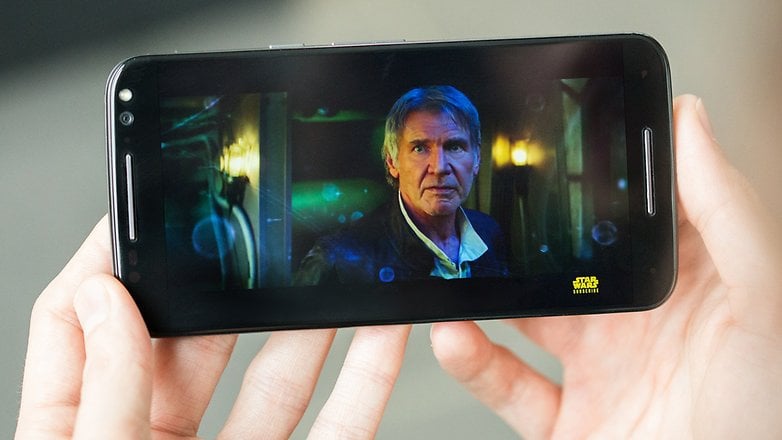
MX Player: for the best overall experience
MX Player is a master of the Android video player scene - it just works. It plays tons of file types, has subtitle integration, and the best on-screen gesture controls you're likely to find in an Android video player. You can pinch-to-zoom and control the volume and brightness levels just by sliding your finger up and down the screen. You can also intuitively scroll forwards or backwards through the video you are watching. The advertisements are unintrusive – they're only apparent on the pause menu – but the downside of MX Player is that you sometimes may need to manually download codecs for certain videos, which can be annoying.
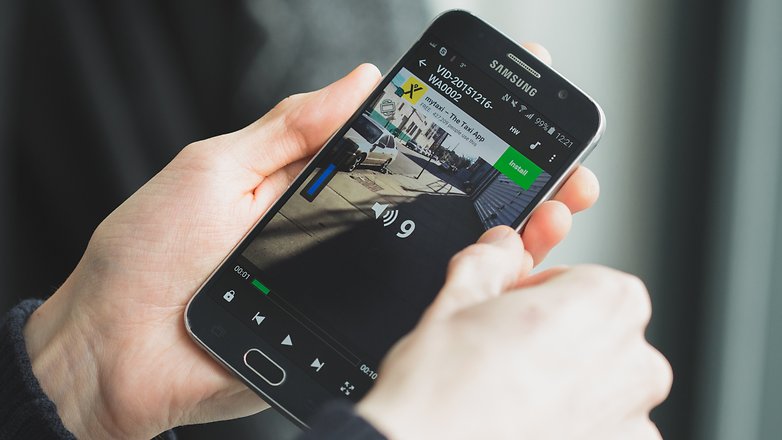
VLC Player: for playing any file type
VLC player has long since been a hit on PC, and for good reason. It has great functionality and an impressive range of features - it's one of those video players that can just play anything. VLC integrates similar on-screen controls to MX Player, but it is maybe not quite as smooth.
Video Player All Format: the top rated
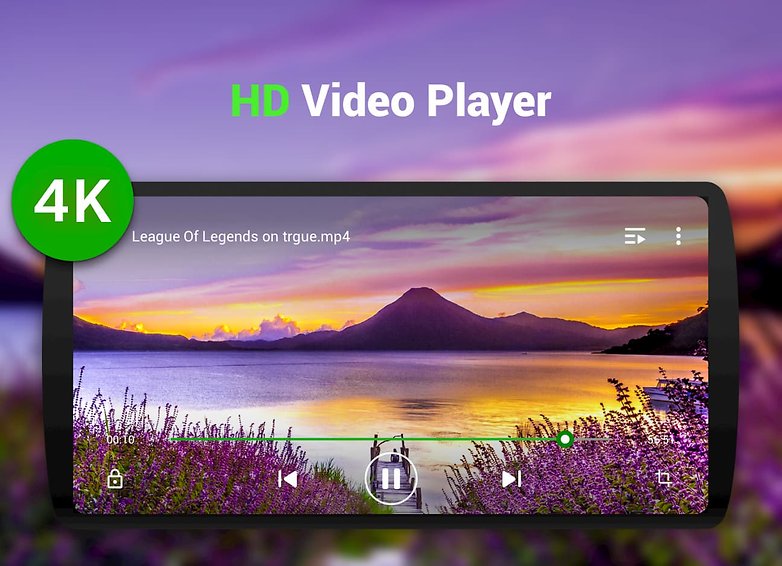
Video Player All Format is a professional tool for video playback. It supports all video formats, files in the 4K format and plays them in high definition. It is one of the best video players for Android smartphones and tablets. Besides all of this, the video player app prevents your private movies from being deleted or seen by other people using your device.
MoboPlayer: for stability
MoboPlayer's interface isn’t all that pretty, but it's reliable and has some nifty features that make it stand out. Mobo Player supports a 'floating windows' mode for users who quickly need to shrink their video to access something else on their device. The videos do need to be decoded before you can do this in some cases, but it's a neat feature nonetheless. It also scans your storage folders to find all of your video files when you first load it up. The actual video player itself maybe isn’t quite as nice as some of the others on the list, but it’s strong in other areas, and also contains an online video search feature, which is useful. The initially ugly interface can be customized, too.
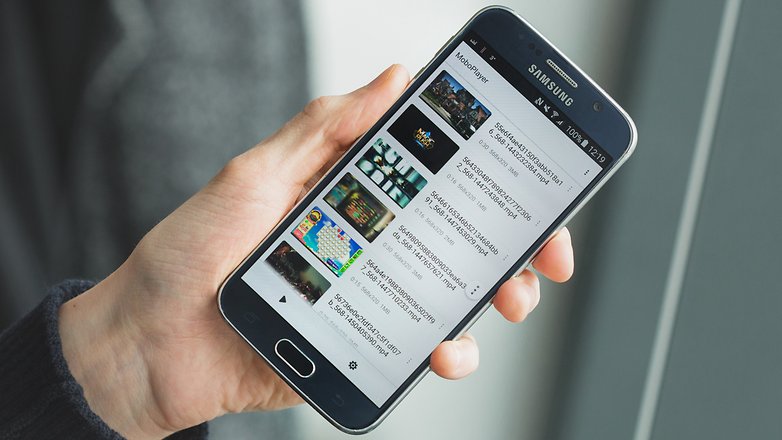
- Download MoboPlayer from the Google Play Store
BSPlayer: for battery efficiency
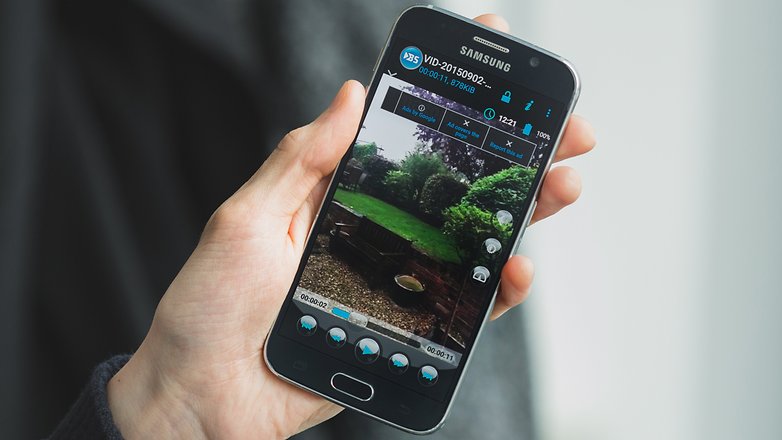
One thing BSPlayer is not, is total BS. BSPlayer comes with a very intuitive interface, making searching for your videos a breeze. It features all of the classic facets of good video players: hardware and software encoding, a huge amount of supported video formats, and built-in subtitle tracks.
It also uses hardware accelerated video playback, meaning it's not quite as much of a drain on battery as some of the other players.
To add to this, there are a number of themes and skins available for customization to spruce it up too. Another handy option is the ability to choose whether playback always begins at the start of your video or the last played part. It's a really nice video player which uses on-screen gestures for navigation – download it if you're interested.
What do you guys think? Do you know any other great Android video player alternatives?











No need too use any codec pack just us CnX Player its is the best all formats and codecs player
NONE of these can Do ONE simple THING... None can give me Control on Video Gamma correction... Not Even the Brightness and Contrast of The Video... I do NOT want to control Device Brightness BUT Video Itself...! Is there some HERO out there...???
BSplayer
These are good media player apps. I mostly use vlc. I like watching foreign movies and often have to download subtitles for it. Vlc doesn't work well with subtitles in android. Pls suggest me a good media player app that support additional subtitles.
Try PlayerXtreme, it is good for subtitles and has many other useful features.
Sunshine is a great one to play media files in all your devices without downloading and without cloud. It works very smooth, with all the formats I have tried so far and with subtitles
Good one! I have used all of these application and found them amazing. I would like to tell you about a media player application that I am using right now. Its called PlayerXtreme and it is the most user friendly and easy to learn app that comes with many unique features. Try it, Just give it a shot and you will feel the difference!
I started using it one or two months back, it is really good. PlayerXtreme is easy to use and offers a lot of features. I like lime laps feature and the option of subtitles. I found it better than other android apps.
Yeh only mxplayer is better than the other.
Thanks for the info.This is a good website.As i was browsing i found a website which gives us to develop a website like netflix.
VLC is the best ever :)
By far the better one is MX player. I find VLC player for Android is like an unfinished app. I installed MX on all my 8 Andtoids and they played perfectly with its functional UI ( I cant say polished UI) because I have not/ will not use any other Player. VLC for Android has got to catch up because on Windows PC I used VLC only.
MX Player & VLC are the only 2 I'll use.
MX being the main one - set it up correct & it doesn't kill your battery. Latest version doesn't require additional codecs either. You can also set it to use either Hardware or software decoding. There are also settings for allowing it to run in the background without pausing so also doubles as a music player
& for broken/incomplete files, VLC comes into play.
For streaming to your TV, this is where they both fall short. You can either mirror your screen or download a 3rd App. Best I've found so far is called:
Video Player by wowmusic
That one allows you to cast the video file direct to your smart TV. Not the greatest and occasionally has a hissy fit, but it does the job until I can source a better player.
Inbuilt video player is enough for me but good options provided in the article.
Stock Galaxy player. THE best.
Agree that Sammy's player is more than fine for me. It has something others don't-preview of video when you hover your finger over a clip :)
Having said that I also have all others from this article as there have been times when i needed them for some reason.
i use mx player for at least 4 years now very good
I have tried most of the popular video apps, but I keep coming back to the Stock Samsung video player, mainly because it has DLNA. There are other apps that allows me to send video to my TV but since the stock app does a perfectly good job it's pointless installing another app which will waste precious internal memory.
The stock app may not look as good or has less features but I'm not needing a fancy dressed up app with Bells and whistles - I just need a player that - plays video - stops the video - pauses the video - sends it to my TV (not Chromecast. I use a WiFi dongle for my Samsung TV). Anything else is just too much guff!
I presume other apps don't have the DLNA feature because they have to pay a licence fee? (though I may be wrong).
Peace ✌
Vlc stutters on mhl output, some casts. It's not up to my uses though I love it on my desktop. MX player reigns supreme on Android.
What about the Samsung stock video player ?