Best news apps for Android: 7 sources for stories
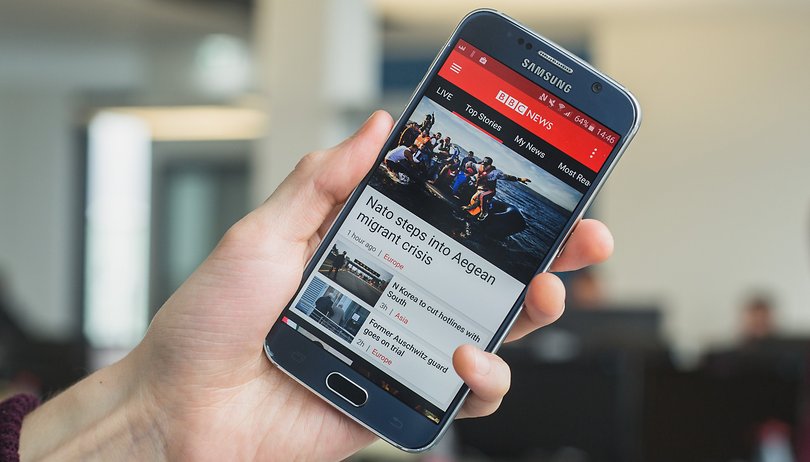

Our smartphones can be both a boon and a burden for staying connected. Keeping up-to-date is supposed to be easier than ever, and yet filtering through the flood of news and blog posts is a full-time job in itself (literally, for some). Luckily there are a number of great apps to help get you the news you want. Here are the best news apps on Android.

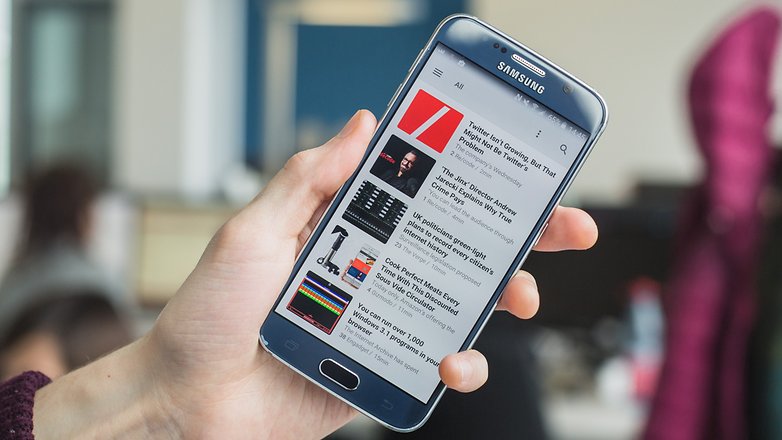
Feedly: for the modern face of RSS feeds
An RSS (Rich Site Summary) feed is a pretty old-school way of tracking updates to websites, but the method has been jazzed up significantly over the years, and now there are a number of apps that collate newly published content from sites for you to browse through.
Feedly is our pick of the bunch. The free version offers enough functionality for most users. You just add a load of publications that you’re interested in, which you can group by topic, and you’re off.
Feedly offers suggestions for publications you might like, which you can browse, add and remove as you see fit. There’s also a popularity algorithm that marks stories as hot, which is useful if you’re in a hurry. Unfortunately, it doesn’t currently offer a way to filter by popularity, but there’s an add-on called Sortly that adds this functionality and is highly recommended (note that it only works on the web version, however).
Pocket: for a way to save offline
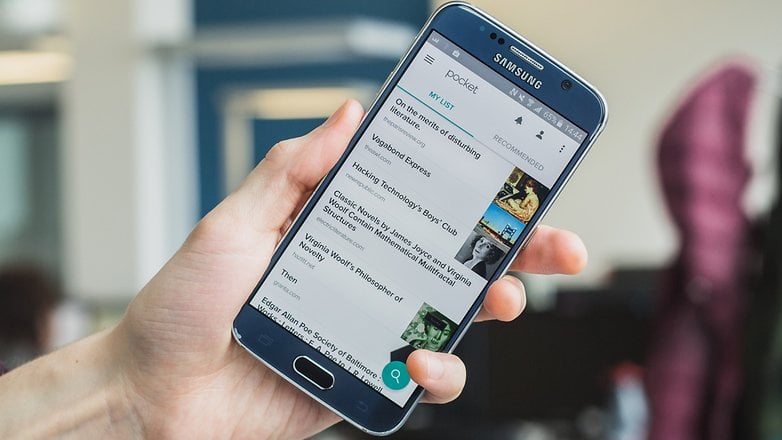
So you’ve got your RSS feed set up, and you’re gleefully flicking through your wealthy customized feed, but what if you don’t have time to read all this stuff that seems so interesting? That’s where Pocket comes in. Pocket provides a super easy way to save content you like the look of to read later. It makes it all available offline and it ties in with Feedly, too, so just share an article to Pocket, and then you can come back to it at your leisure.
Pocket saves articles in a neatly trimmed reader view, removing all the headers, backgrounds and ads from websites. It also has an option to archive articles that you particularly like, so you can easily refer back to them at a later date.
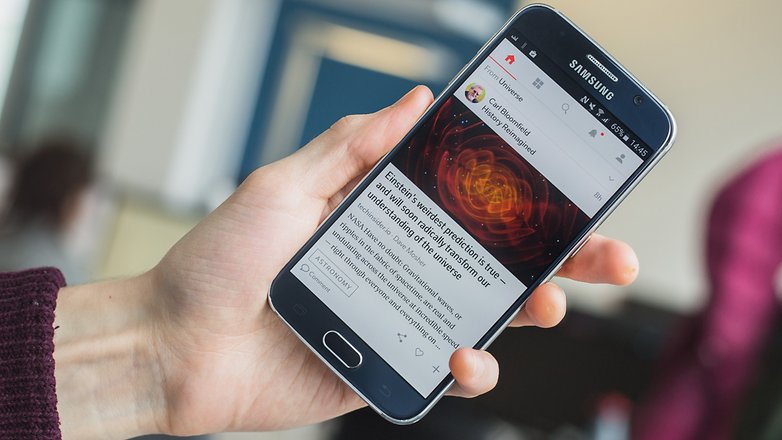
Inside: for curated news
Inside provides a novel overview of the news. A team of volunteer curators selects stories, summarizes them in a paragraph and posts them to the feed. If a story summary takes your fancy, you can follow the link to read the full story from the original source.
There are trending stories and top news, and everything is categorized, making it a seamless and varied news-reading experience.
Flipboard: for a personalized mobile magazine
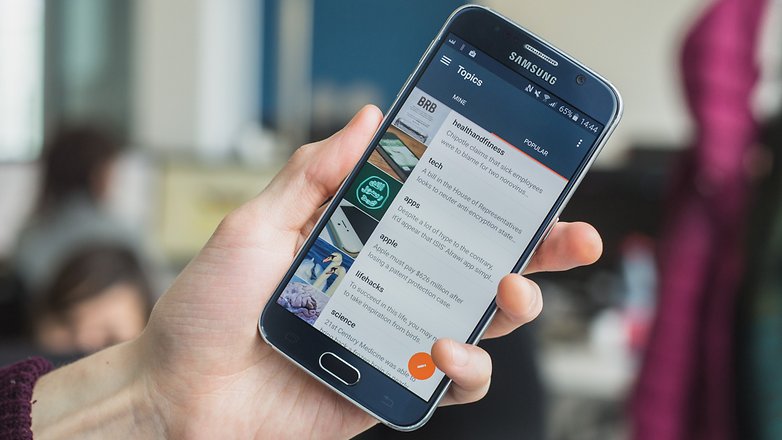
Flipboard gets its name from its pleasing page-flipping animation that happens every time you swipe over to another story. But it’s more than just a pleasure for the eye: Flipboard has a huge number of topics that you can highlight as being of interest, which the app then uses to feed you content.
This method can be a little overwhelming, but once you delve deeper, and start to follow people through the app, tell Flipboard that you want more articles like the ones you enjoy, and generally make the most of its algorithms, you can end up with a highly refined and personalized magazine that is a pleasure to flip through whenever you have the chance.
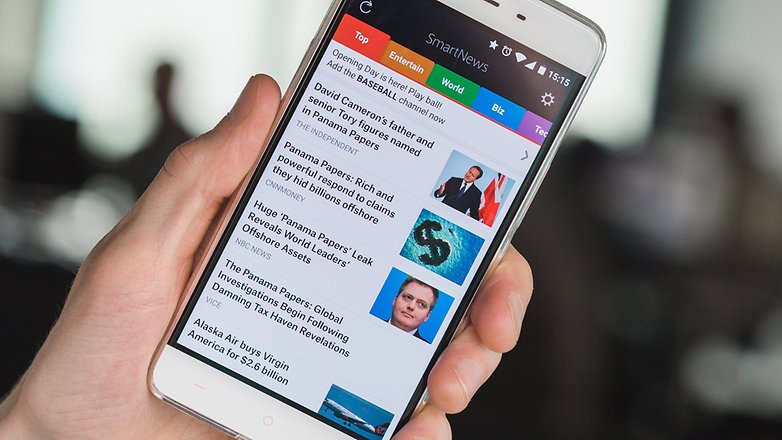
SmartNews: for an overview of trending stories
Designed for a quick overview of the most popular articles on the web, SmartNews offers a clean and precise interface that sorts stories under general headings – top, entertain, world, biz, tech, science. Customization is somewhat limited, but you can create new channels from a preset selection of news sources.
If you're not looking for anything too specific, then SmartNews is a great way to get a hit of trending news on demand. Its Smart view also offers an effective reader mode, cutting stories down to a text-only view.
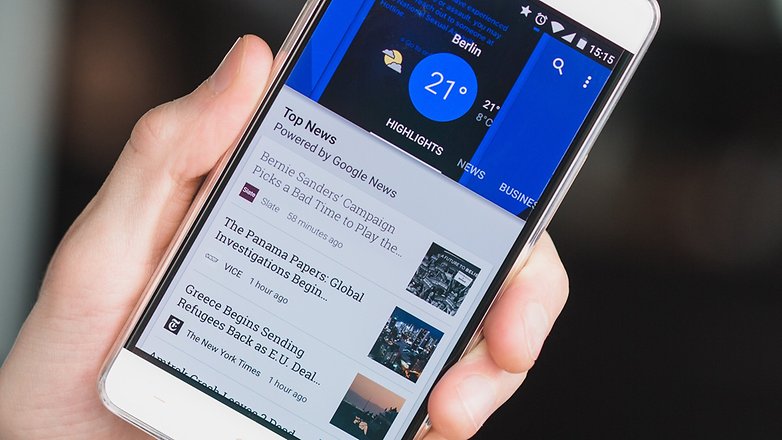
Google Play Newsstand: for the tried and true
Play Newsstand offers more the more you put into it, learning from your habits and inclinations to continually create a more pointed news feed that appeals to your interests. Its animations and UI are as slick as you might expect from a Google app, and overall it offers a very attractive package. As with SmartNews, the categories are sometimes overly generalized, which can make it difficult to find more specific sources of interest.
One thing Play Newsstand offers over the other apps on this page is a cohesive integration with magazine subscriptions available through the Google Play Store.
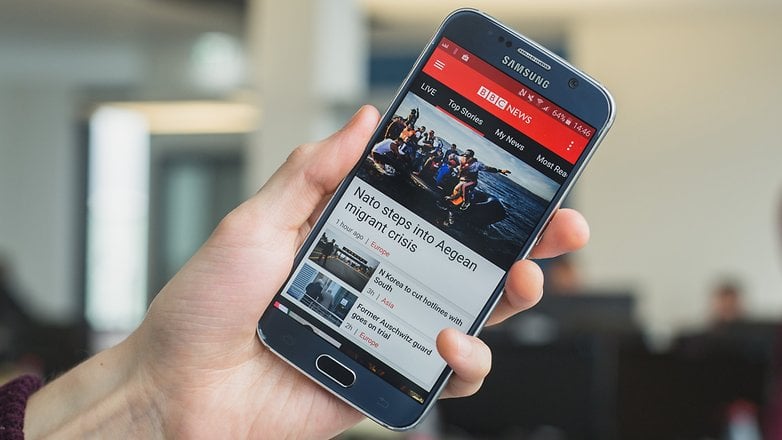
Your favorite publication’s app: for news you’re used to reading
Whether you prefer the New York Times or lean towards Fox News, CNN or the BBC, plenty of news organizations now have their own apps that you can install to make browsing their content way more convenient.
What app do you use to keep up to date on the news? If you think we've missed something, let us know in the comments.





Flipboard is an amazing app
I peraonally like it so much
Really great article. Usually, I read the news on Twitter. If you want to check Indian news apps then WIBRATE is the best app. Recently I download this app. This is a really good app for the news feed. You can check Bollywood news, political news and many more. This app provides many features like you can search for jobs or you can post jobs, some new offers and many more.
Hey, I read your article it was very informative and very helpful. I have been using www.awesummly.com short news app Awesummly . It's the best short news app I have come across.
I think the best news application is Breaking News -Daily Newspaper .
You can give it a try. It has a fresh design and you can choose the news sources whatever you want to follow.
I am usually using Feedpresso: this app has helped me to personalize my news feed and, finally, to read only topics that I am interested in!
You need to checkout Daily - News flipped around. com.fa.daily.app
Feedly is the best news app in android, It's very usefull,
Without those news apps, I always use APUS Headline (within APUS Launcher) to read daily news. Recently, I can even watch video directly from that. I don't know if there is any other launcher support this??
I'm happy enough with the old Google News and Weather, especially like customizing search topics for passing interests. I have BBC, Bloomberg, Reuters and DeuscheWelle apps and a nice Canadian aggregator called Canada Business News along with a couple of more general Canadian news apps. The former Russia Today, now RT, has coverage of the mid-east, eastern Europe and some other regions that's missing in western media, not too propagandist. I open links in these aggregators in Ghostery to avoid a build up of useless cookies and cache files from one-off interactions.
Try In Shorts. A unique approach.
smartnews is by far the best news app, I have used Google news, feedly and flipboard and smartnews has beaten them all.
I am currently using Google news for my feed. I tried pocket a few years back and didn't like the UI at that time, but I may have to give it a try again to see how and if it's improved.
Yahoo News Digest.
Google play newsstand. Much less invasive of ui and notifications than the above choices.