The best music streaming apps for Android and iPhone in 2022
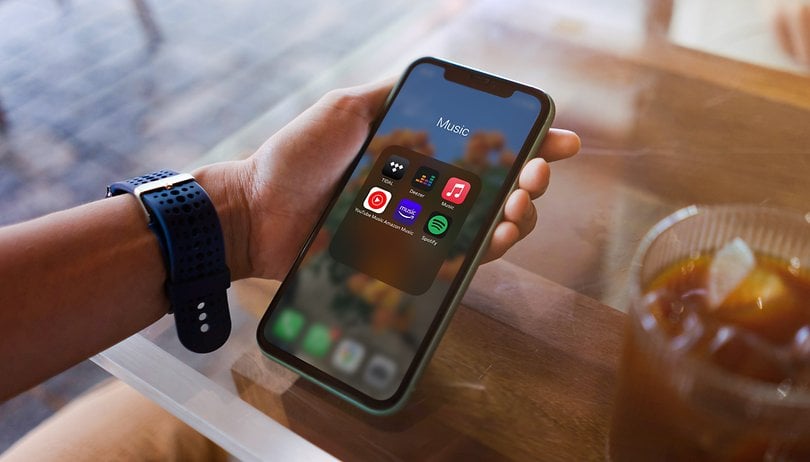

What are the best and most important music streaming services for Android and iOS in 2022? Many mainstays such as Apple Music, Deezer, Amazon, and Tidal are in Spotify's slipstream. NextPit compares the most important music streaming service providers for you and reveals what you get for your hard-earned buck.
Music was my first love and it will be my last!
Songs are always a matter of taste, and what is music to one's ears might be trash to another person. However, I find that without music, I would die just like any other plant that has ever lost its way into my own four walls. Thanks to the availability of music streaming services, I have access to not only an unbelievable 70 million songs at any one time, but also have them right on my smartphone regardless of where I am.
Streaming killed the Radio Star
As music streaming becomes more and more important, playing a prominent role in our daily life, let us take a look at the most important services available currently, compare them with one another and also list down their respective prices. Remember that this list is a subjective one, so let us know in the comments if you have other favorites that we should take note of and why.
We shall begin with an overview of the services offered and present them to you one by one. It is time to get cracking with your favorite music playing in the background!
Key facts at a glance
| Spotify | Amazon Music | Apple Music | Deezer | Tidal | YouTube Music | Napster | Qobuz | |
|---|---|---|---|---|---|---|---|---|
| Trial period | 30 days | 30 days | 3 months | 3 months | 3 months |
30 days | 30 days | 30 days |
| Price |
|
|
|
|
|
|
|
|
| Sound quality |
|
|
|
|
|
|
|
|
| Maximum number of devices you can listen on simultaneously | 1 | 1 | 1 | 1 | 1 | 3 | 1 | 1 |
| Song library | 70+ million | 75 million | 75 million | 73 million |
|
70+ million | 60 million | 70+ million |
| Audiobooks | Yes | Yes | Yes | Yes | Yes | – | Yes | Yes |
| Podcasts | Yes | Yes | Yes | Yes | Yes | – | – | – |
Table of Contents:
Spotify: NextPit's recommendation
Spotify is our very first recommendation when it comes to music streaming services. The top dog is simply a very good all-rounder that combines a large library, many functions, a fair price, and availability across a large number of platforms. Spotify is still generally the most popular music streaming provider while commanding a market share of 32 percent.
| 30 day free trial |
Try Spotify |
| Pros
|
Cons
|
|
| Price: | Spotify Premium: $9.99/month |
What Spotify offers:
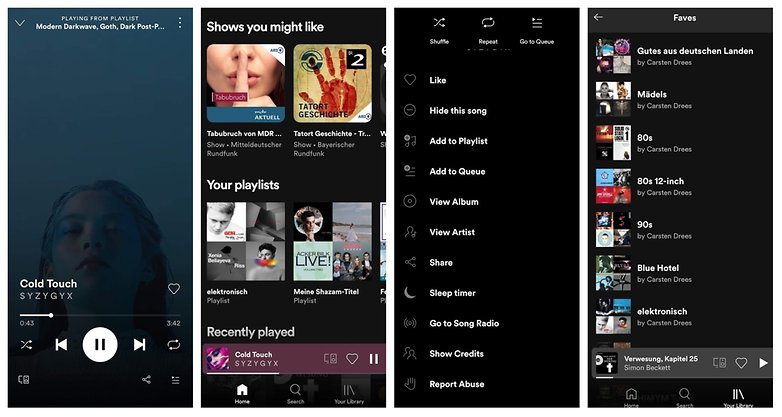
Premium customers get to enjoy 70+ million songs, audio books/games, and podcasts. In addition to your very own playlists, you can listen to sensibly curated Spotify playlists or the millions of available playlists by other users. You can also create these playlists as a collaborative effort. The app is filled to the brim with functions, such as a private mode, and a sleep timer. However, it could be more intuitive and I miss a decent lyrics feature.
Spotify scores with a wide range of available device compatibility and plans. Spotify Connect, Bluetooth, Apple AirPlay, Chromecast, Alexa, Google Assistant - Spotify connects to just about everything that comes to mind and is of course, also available for iOS and Android.
Who is Spotify for?
Spotify is the perfect all-rounder who will offer music that you like - whether you listen to rap, dance, indie, classical, or even dubstep. There are more affordable plans for families, students, and also couples, and therefore, is suitable for just about everyone who wants to have the entire world of music on their smartphone for a reasonable price. The songs are now also available in 320 Kbit/s, but HiRes fans are not (yet) served in this department. Spotify is perfect for podcast fans, and there is a very wide range to pick from including numerous originals.
For us, Spotify is the top recommendation simply because for $9.99, you get a wide range of functions, fantastic compatibility, and a podcast selection that is second to none.
Amazon Music Unlimited: Perfect for Amazon Prime customers
| Check out which plan suits you best! |
| Pros
|
Cons
|
|
| Price: | Amazon Premium Unlimited $9.99/month |
Amazon Music Unlimited offers:
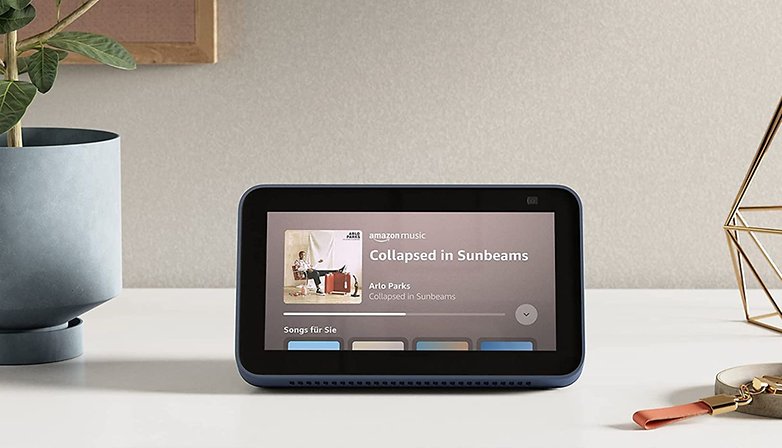
Amazon Music Unlimited offers just as much as Spotify, but it loses out to Spotify in terms of exclusive content. However, it is certainly catching up in that department, and fast! Personally, I like the app better than the Spotify equivalent and it also serves up lyrics. What's great about it? HD songs with bitrates of up to 850 kbit/s (16 bit / 44.1 kHz) are included in the regular plan, with seven million songs being available in "Ultra HD" (up to 24 bit/192 kHz). Amazon Music is also available on many devices, including Echo devices that are compatible with Alexa.
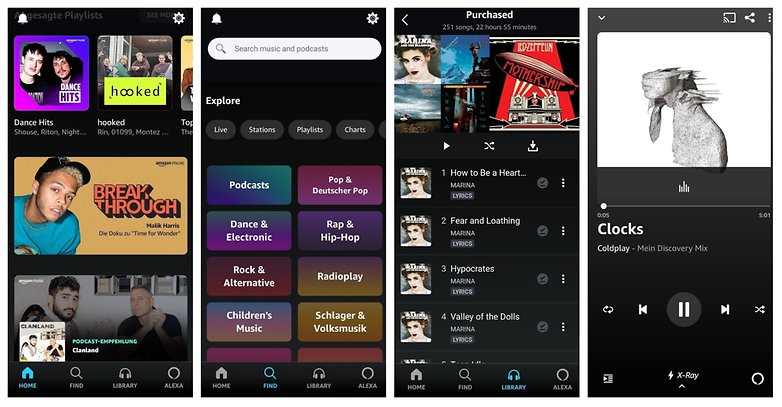
Who is Amazon Music for?
Amazon is an excellent Spotify alternative, especially for those who are already Amazon Prime subscribers. They can take advantage of Amazon Music, which offers around two million songs at no additional cost. Alternatively, Prime customers can also subscribe to Amazon Prime Unlimited for $7.99 instead of $9.99 monthly. It is even a little cheaper if you link your plan directly to an Echo device, you end up paying only $3.99 per month!
Apple Music
| Try it free! |
| Pros
|
Cons
|
|
| Price: | Apple Music $9.99/month |
Apple Music offers:
Apple offers different artists, unique playlists, and weekly recommendations based on what you hear. However, I like the recommendation algorithm that works better on other competitors. Another highlight would be the exclusive Beats 1 radio station, where hip DJs provide you with music around the clock. Plus there are plenty of curated lists and real-time lyrics to enjoy.
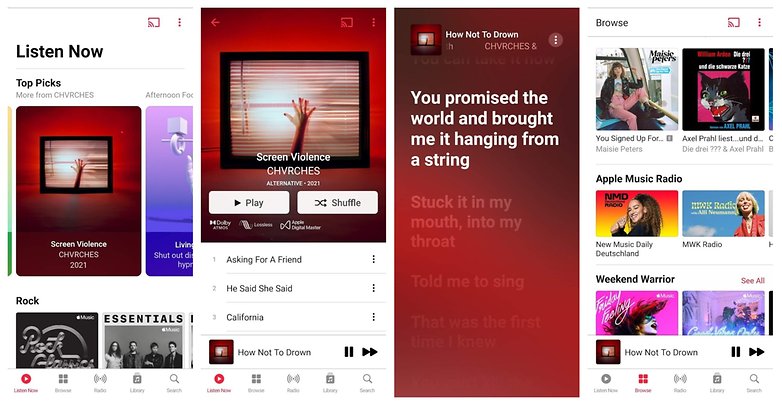
With more than 70 million songs in its library, you will stumble across Apple-exclusive content from time to time, and you can also listen to your purchased songs in the app itself. Apple recently switched to offer lossless audio support, so you get to enjoy really fine audio quality on your ears (see table above) and also 3D audio with Dolby Atmos.
Who is Apple Music for?
Anyone who focuses on radio and live events, and also feels comfortable within the Apple ecosystem, should find Apple Music to be a no-brainer. Incidentally, Apple also pays out more generously to artists on this platform than its Swedish competitor, so your favorite band could also be happier if you prefer to stream their work via Apple Music.
Deezer
| Try it free for 3 months |
Try Deezer |
| Pros
|
Cons
|
|
| Price: | Deezer Premium $9.99/month |
What Deezer offers
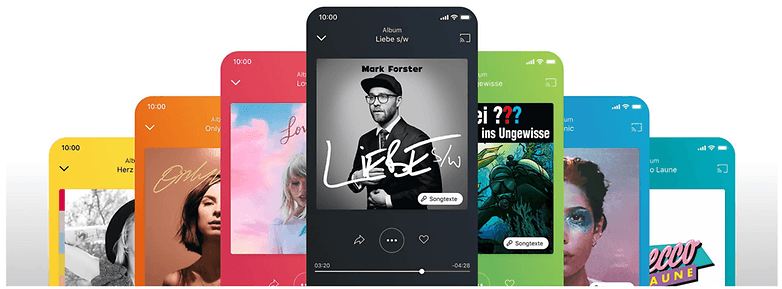
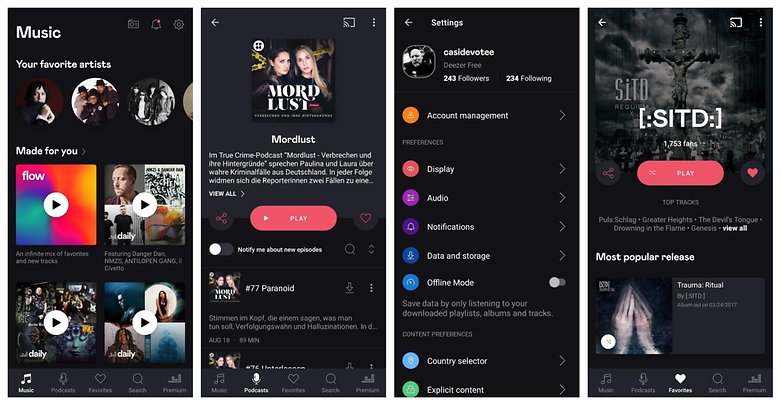
I have the feeling that Deezer is always underestimated or looked over by the masses. The service hails from France, and now has amassed a library of 73 million songs, having mastered just about every trick that the other music streaming services offer. You can stream Deezer on any device that you want, it offers a great recommendation feature with Flow, allowing you to listen to radios, display lyrics, organize songs in playlists (also together), curate your own music collection, and listen to them offline. There is also a HiFi plan for audiophiles.
Who is Deezer for?
Short answer: Basically, anyone who wants to stream music. Some exclusive podcasts are unavailable on this platform and you have to live with the fact that there are some content limits (for example only 2,000 songs per playlist and a maximum of 1,000 albums).
Tidal
| 30 days free trial |
Try Tidal |
| Pros
|
Cons
|
|
| Price: | Tidal Premium $9.99/month |
What Tidal offers
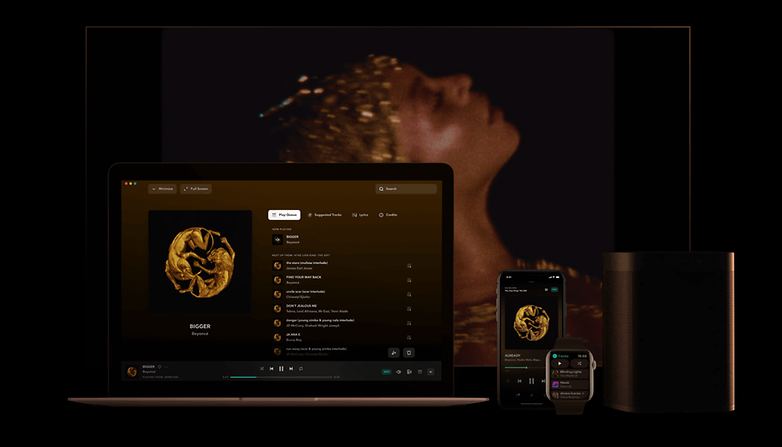
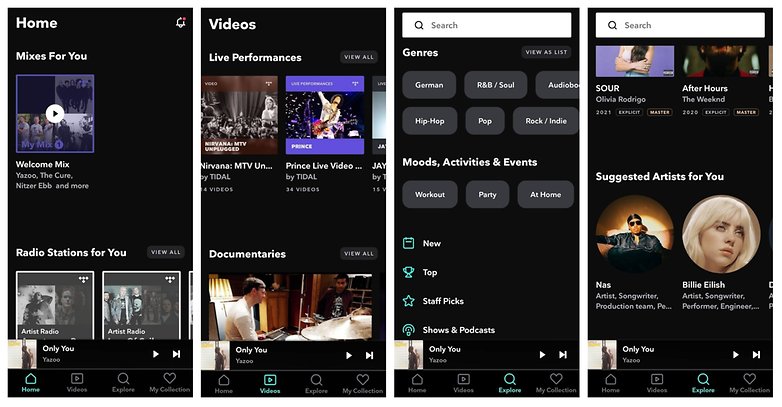
Tidal is considered very artist-friendly and pays out some of the highest royalties to its content creators. Not only is there exclusive content on Tidal this service also offers live concerts and videos.
For instance, a mere $1.99 allows you to extend the trial period to two months. Keep your eyes peeled on its social media, because every now and then there is an offer that offers an extended trial subscription which might even hit the three month mark.
Who is Tidal for?
Tidal offers up to 320 Kbit/s AAC for music, or 1,411 Kbit/s in the HiFi subscription. Tidal is therefore suitable for advocates of HiFi music who are willing to pay $19.99 monthly for superior quality. Fans of American rap or RnB music tend to be better catered to compared to than other genres.
YouTube Music

| 30 day free trial |
Try YouTube Music Premium |
| Pros
|
Cons
|
|
| Price: | YouTube Music Premium $9.99/month |
What YouTube Music offers
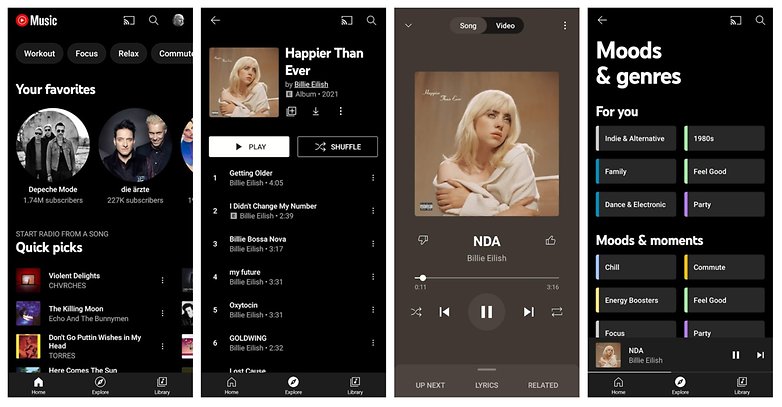
YouTube Music is also a serious alternative to Spotify. One of the strengths of YouTube Music would be the seemingly infinite reservoir of videos and the possibility of introducing a subscription plan that includes "regular" YouTube. Hence, for the standard $9.99 monthly fee, you get to enjoy the music version, while for $11.99 you can take advantage of YouTube Premium which includes YouTube Music Premium. In addition to music, there are also music videos, concerts, and other content.
You can also upload your own songs via the browser, but with YouTube Music Premium you have to live with 256 Kbit/s quality (the free plan that includes advertising maxes out at 128 Kbit/s).
Who is YouTube Music for?
Its close connection to the classic YouTube makes it easier to find your way around the YouTube Music app, but more importantly: Your playlists and recommendations will follow you to the music service. This way, you can join YouTube Music today and still use an algorithm that is already very well suited to your needs. This makes YouTube Music perfect for those who have used YouTube extensively in the past.
Napster

| 30 day free trial |
Try Napster |
| Pros
|
Cons
|
|
| Price: | Napster + Mobile $9.99/month |
What Napster offers
With 60 million songs in its library, Napster offers around 10-15 million tracks less than the rest of the competition. Otherwise, this app offers you pretty much everything that you can get elsewhere. There is the possibility to listen to playlists or radio stations sorted by mood and genre and you can easily discover more of what you like to hear this way.
However, I think that Napster could have done a better job in presenting itself in the app. It takes a little getting used to before everything can be found, but the interface could be more user-friendly and intuitive. One great feature it has that virtually nobody else offers: A converter that lets you import your Deezer or Spotify playlists to Napster. Another huge plus point: Napster pays out more royalties to the artists than the rest of the competition!
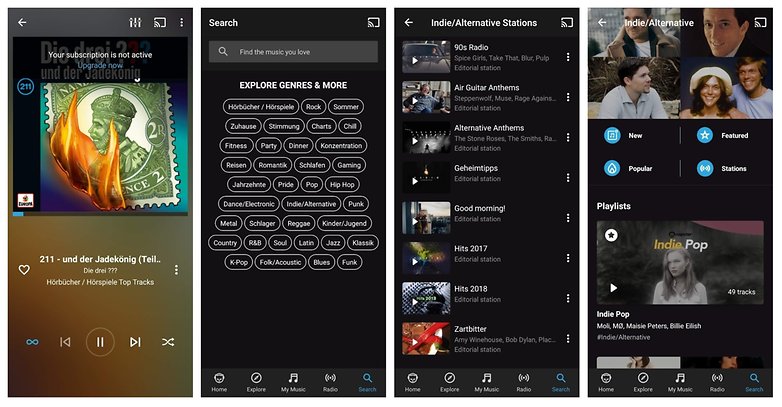
Also interesting: Napster is also available for businesses. This means you can license Napster and use it with your branding (did I hear a suggestion to introduce music streaming at NextPit?). Perhaps you even know a prominent example of this yourself, and if you want to make your business stand out from the rest of the crowd, why not?
Who is Napster for?
Napster loses out to its peers in terms of its song library and functionality, but pays out higher royalties to musicians than the rest of the music streaming service providers. This makes Napster the ideal choice if you want your favorite artist to benefit more.
Qobuz
| 30 day free trial |
Try Qobuz |
| Pros
|
Cons
|
|
| Price: | Studio Premier $19.99/month |
What Qobuz offers
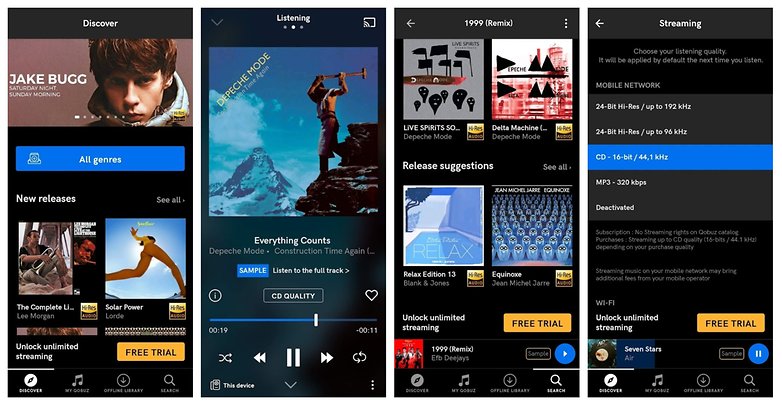
Finally, with Qobuz, I have added a rather exotic streaming service to our recommended list, which you may not have come across yet. We are dealing with a high-quality service here, but this is not only related to the audio quality of the songs. As with Tidal and some other streaming services, Qobuz also offers tracks in studio-quality format. Having over 70 million songs that are generally available in CD quality (16 bit, 44.1 kHz), there are also two million hi-res songs (24 bit, up to 192 kHz) you can enjoy.
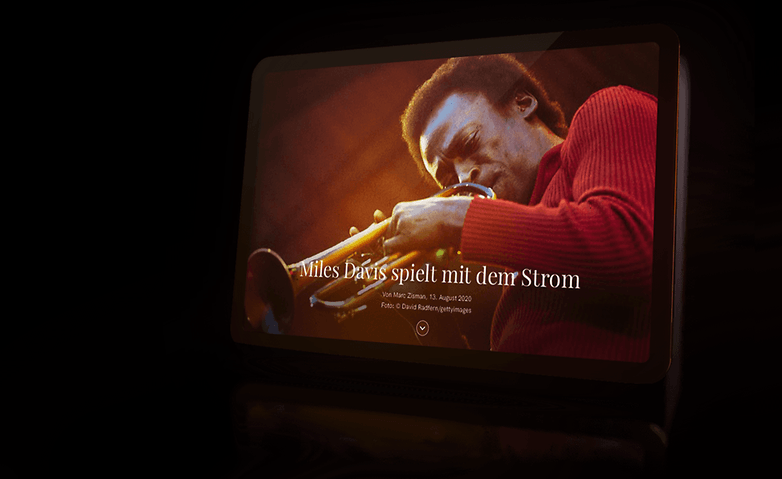
In addition - and this is where Qobuz differs from the rest of the field, the service offers editorial contributions in the form of a music magazine. In there you will find, among other things, band interviews, detailed articles on artists or labels, discographies, album reviews, and even reviews of high-quality hi-fi systems. You can also purchase downloads directly from Qobuz.
Who is Qobuz for?
Clearly this is one music streaming service for audiophiles! While you do pay more, you will also have to make do without some convenient features in the app. In return, you not only get the best sound quality available, but also a music magazine and a lot of useful, informative articles from a dedicated music editor. There is also additional information about albums and artists you have the opportunity to buy music directly from. So if you have a fantastic sound system in your house, you can surely think about using this exotic streaming service. On this page, you will find sonorous (pun intended!) names such as Dynaudio, KEF, Bang & Olufsen, Yamaha, and many others who enjoy direct Qobuz support.
Tip: The best in-ear Bluetooth earbuds
Have you finally decided on a music streaming service, but you don't have the necessary audio equipment to go along with it for maximum enjoyment? Then you will find our recommendations for the best in-ear Bluetooth earbuds with ANC.
Here ends NextPit's comprehensive compilation of recommendations for music streaming services. You would surely know of at least one music streaming service that we have not included in our list. If that is the case, we look forward to your comments as you tell us why we should add your favorite music streaming service to the list. Otherwise, we look forward to your feedback on your music streaming habits in general. Where and how do you listen to music and which music streaming service provider is your favorite?









You have shared informative stuff I really love it, keep posting valuable posts like this. Have you tried Mobdro on your Android device, As it provides best streaming service with categories for streaming.
Hi, thanks for the useful information on "music streaming apps for Android and iPhone in 2022". BTW, Hi, you can try MUSCONV, its a free tools to transfer playlists from Spotify to Apple Music, Amazon Music, YouTube Music, or Tidal.
I like to use Apple Music to stream the music on my phone. The AudFree Audio Converter Mac helps me to get the converted Apple MP3 files. So I can listen to the songs on my apps. The songs are wonderful and I like to play them when I walk, study or relax.
I think Amazon will be the clear winner in the end. Maybe youtube too later on. For the most part its important to be able to transfer your music playlists anytime you want which can be easily done by MusConv
Your comparison table is just enough to understand, which is the best music streaming app worldwide. Thanks for providing such a list!
I bounce between Spotify and Pandora, Pandora I don't pay for, Spotify I used to pay for (commercial breaks don't bother me, having more choices of my music selection does).
It takes a lot for me to want to pay for a service, you have to deliver what I want, or I will not pay (and even go as far as deleting the App).
I prefer high quality offline music files, to which I listen using Neutron Music player, or Poweramp Pro or Stellio Music Player, depending on the mood.
why should i stream music? Low quality, ads or paid service.
I can carry my own curated high quality rips and not worry about bandwidth, coverage, and more.
perhaps occasionally to find new music but thats the extent of its usefulness really.
Regarding these apps only in Chinese, wouldn't Google Translator solve that problem?
Sad thing is Google play music doesn't work in India. Spotify and Tidal haven't launch their service too.
Last I checked, you can buy albums from GPM India.
I use google play in India without issues.
Is it the best music streaming app? I am using Google Play Music.
It depends on your preferences. Google Play Music is great, but I prefer Spotify because of its user interface.
Usually I am not one to bother commenting on posts like this, Im more of a lurker. I set up a 3 month trial with Google Play music as I bought a Nexus 5x device and, well, frankly, it's balls. I live outside the US and guess what.. for whatever dumb licensing restrictions that escape me, Google don't let me use YouTube Red outside the US. Yet another instance of a high tech company completely ignoring the 95% of the population outside the 5% of idiots that are almost going to let Trump become president.. I don't really like the GPM interface that much either, and it crashes frequently on my Nexus which is pretty retarded. I wanted to make it work, I really did - but I think I'll have a better chance with Spotify..
Google Play Music is my choice. I like the design a lot better than other music streaming apps and that YouTube Red combination is hard to pass up. Everytime I see myself trying to switch to a different app to try it out YouTube Red always brings me back
Recently switched from Spotify to GM. Reason being, the selection of music is faaaar better, youtube red, radio algorithm is very good and the ability to upload music is awesome. I have found lots of obscure hard to find music on GM 9/10
"Prime Music can only be shared between the two adults sharing the Amazon Prime account."
This seems to be incorrect as there doesn't appear to an actual way to share this. Unless you can describe how I am wrong you probably should correct the article.
I don't agree with The best title because one should test it for themselves and see what's their own best app or things are and the best title seems not to be fair and it seems to spread false news because by seeing it people opinions change.
I miss Songza, which provided free and unlimited streaming with no commercials (maybe had popup ads? I can't remember). But Google bought it and included it in Google Play Music. blah